 Wonderland Connect
For Vern and the Wonderland Properties team
Wonderland Connect: what we built
Your prototype, made real. One app for every maintenance job across your buildings: report it, send the right person, and follow every step to fixed, with proof along the way. In Wonderland red and blue, on every phone in the team.
- Sign in
- Home and regions
- Report an issue
- The job journey
- Jobs list and board
- Properties and units
- Team and roles
- Activity and alerts
- On a computer
- Built from your prototype
- Coming next
- How your team gets in
The screens on this page come straight from the app and show sample data from our own checks, not your buildings.
1 Sign in
Sign in with an email code
Each person types their work email and gets a 6-digit code. Type it in and you are in. No passwords to remember, share or reset.
- Invite only. An email that is not on the team list is turned away by the database itself.
- The code works once, for a short while.
- Works on any phone or computer, with no app store needed.
Swipe for the next screen
2 Home and regions
The whole picture at a glance
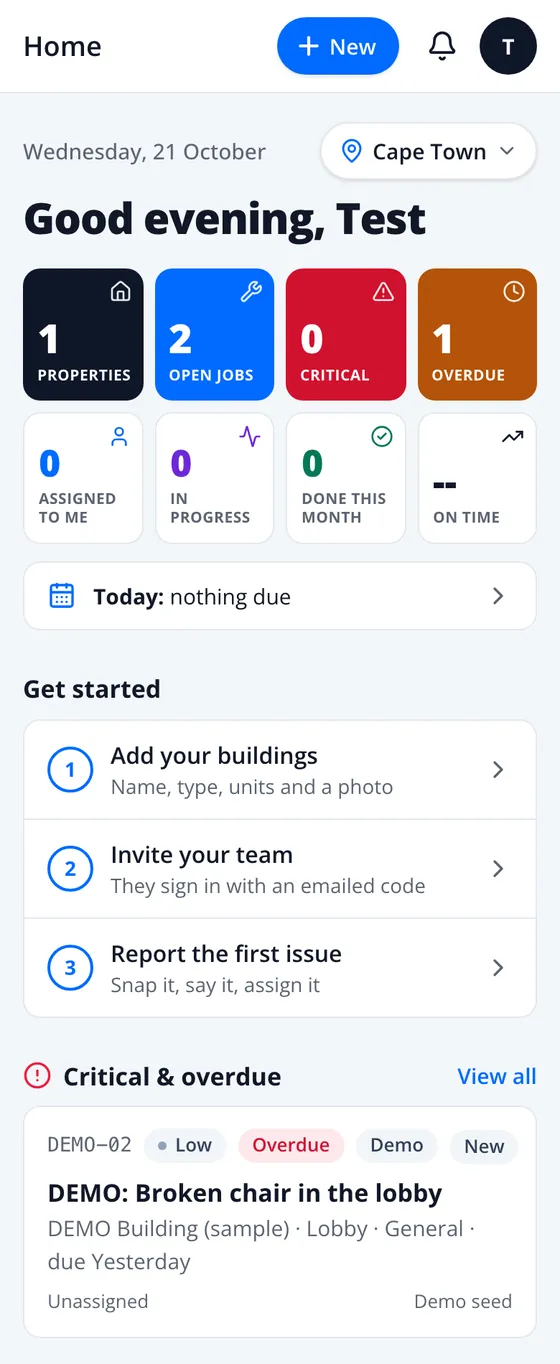
Open the app and see what matters this morning: open jobs, critical, overdue and done this month, what is due today, and who on the team is free right now. Home refreshes on its own every 30 seconds.
- Your three regions: Cape Town, Johannesburg and George. Every list follows the region you pick.
- Critical and overdue first, then running late and recent jobs.
- Technicians see their own jobs first, plus the jobs up for grabs.
- Get started steps until the first building, invite and job are in.
Swipe for the next screen
3 Report an issue
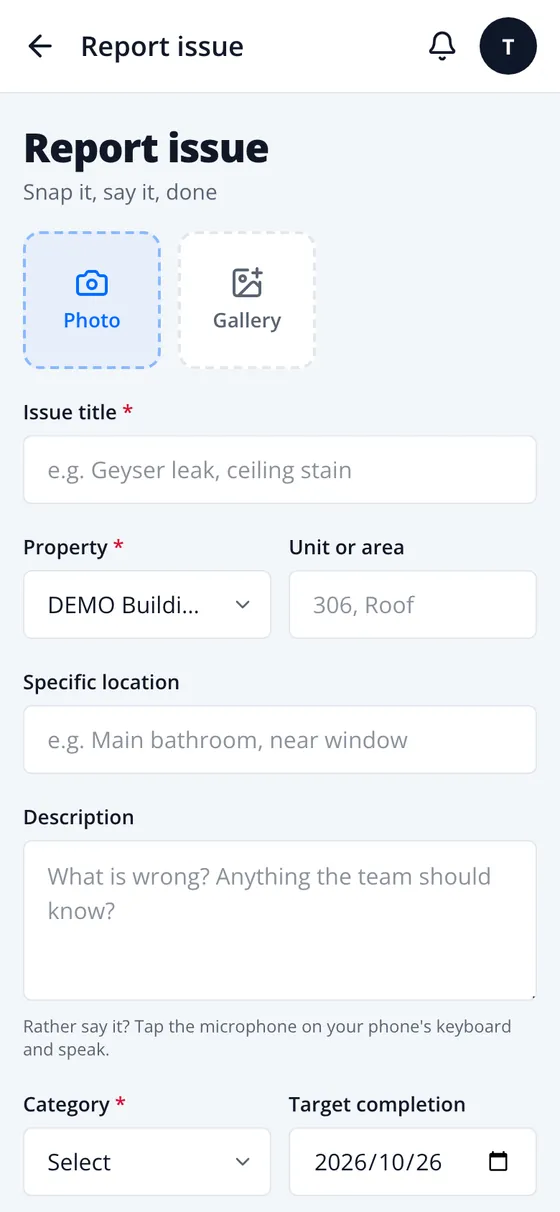
Snap it, say it, done
Take photos with the camera or pick them from the gallery, choose the building and the unit or area, the trade and how urgent it is. The target date follows the priority, and the app suggests the best fit by skill and workload.
- Duplicate warning. If the same problem is already open there, the app says so before it is logged twice.
- Photos are shrunk on the phone, so they send quickly on mobile data.
- Rather say it? Tap the microphone on the keyboard and speak.
- Assign it to someone, or leave it in the pool for the team.
Swipe for the next screen
4 The job journey
Every job, step by step, with proof
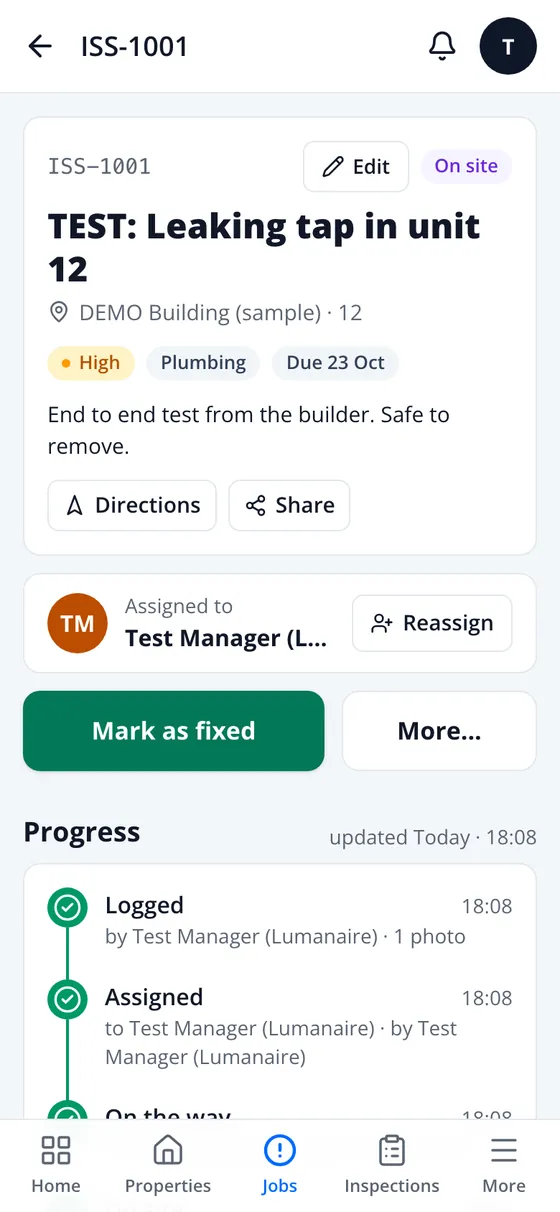
Each job moves through the same clear steps, and every step is stamped with who did it and when. You and the boss can follow the play-by-play without a single phone call.
- Only the person on the job moves it forward. Managers can reassign.
- Pause it while waiting for parts or access, reopen it if the problem comes back, or cancel it with a reason.
- Call buttons, directions to the building and a share button on every job.
The job lands with the right person, ready to go.
One tap for the arrival time, then Let the team know.
The team can see who is coming, and when.
Arrival is checked once against the building: distance only, never tracking.
Proof, not promises: an after photo and a short note.
Confirmed and closed, with every step on the timeline.
Before and after photos, the chat and the full history stay on the job.
Swipe through all seven steps
5 Jobs list and board
Every job, as a list or a board
See every job in your region as a list with quick filters, or flip to the board and watch jobs move from New to Done.
- Quick chips: All, Open, Mine, Unassigned, Critical, Overdue, Running late and Done.
- Search, filter by building, person and trade, and sort by newest or priority.
- Download the month's jobs as a spreadsheet.
Swipe for the next screen
6 Properties and units
Every building, ready for the team
Each building with its cover photo, type, health, units, floors and open jobs. Open one for what the team needs on site: the map pin and directions, access notes and building contacts.
- Add a building in a minute: photo, name, type, location, units, floors and a map pin.
- Add several at once: paste a list from a spreadsheet, check it, add them all.
- Units in one go: type 101-112, 201-212, Shop 1 and they are all there.
- Commercial, Retail, Industrial, Residential, Mixed use and Airbnb.
Swipe for more screens
7 Team, roles and invites
The right access for each person
Invite people one at a time or a whole list at once. Each person gets a role and their regions, and the app only lets them see and do what that role allows.
- Executive: sees every region, reports and comments.
- Maintenance manager: runs properties, jobs and the team in their regions.
- Office coordinator: logs and assigns jobs.
- Technician: own jobs and the unassigned pool in their regions.
- Viewer: read only.
- Change a role, regions or skills at any time. Switch someone off and they see nothing more. Nothing is ever deleted.
Swipe for more screens
8 Activity, notifications, categories
Stay on top without asking around
The bell shows what is new on your jobs, Activity lists every job update you can see, and Categories set the trades and how fast each priority should be fixed.
- Notifications when someone assigns you a job, moves one of yours or writes on it.
- Activity: every job update you can see, newest first.
- Targets to fix: Critical within a day, High within 2 days, Medium within 5, Low within 10.
- 16 trades to start with, from Plumbing and Electrical to Generators and Roller doors. Managers keep the list.
Swipe for more screens
9 On a computer
On a computer too
The same app opens on a laptop or an office computer, with a side menu and more room for lists and the board. On a phone it can sit on the home screen and open full screen, like any other app.
Built from your prototype
Your screens, made real
Vern, your prototype was our blueprint. We kept your layout, your words and your flow, and built them on a real foundation, so the whole team works from the same live picture.
What we kept
The parts that already worked, in your words.
- The five tabs along the bottom, and Home with its eight tiles, the region chip and "Good evening".
- "Snap it, say it, done" for reporting an issue.
- One-tap arrival times and "Let the team know".
- The play-by-play timeline, before and after photos, and the job chat.
- Adding a new building quickly, for the new building every week.
What we added
What it takes to run it with the whole team.
- Roles and regions. Each person sees and does what their role allows, in their own regions.
- One live database. Everyone sees the same jobs at the same moment, on any phone or computer. Nothing lives on one handset.
- Proof at each step. Who did what and when, an arrival check at the building, and an after photo and a note before a job counts as fixed.
- Invite-only sign-in. A 6-digit code by email, no passwords. Nobody gets in without an invite.
- Your data in its own database, in London. Wonderland's jobs, photos and people are kept apart from everyone else's, on secure servers.
- Units, quickly. Add a whole floor of units in one go, so nothing gets stuck without a unit number.
Coming next
What comes in the next phase
The places for these are already kept in the app, so they slot in without changing how the team works.
Getting started
How your team gets in
No app store and no passwords. It takes about a minute per person.
- We invite each personName, work email, role and regions. Only invited people can get in.
- They open the sign-in pageOn their phone, and type their work email.wonderland.lumanaire.co.za/
sign-in - They type the 6-digit codeThe code arrives by email. Type it in and they are in. Add it to the home screen and it opens like an app.
Vern, thank you for the prototype and the recording. They showed us exactly how your team works, and this first version follows them closely. We look forward to seeing it on site.